
Using the studio
from a long video to finished clips.
A tour of the app in the order people work: bring in a source, analyse it, decide on the clip board, polish a clip in the editor, render, then download, share or post.
01The app at a glance
The top navigation has Library, Exports and Clip settings, plus Campaigns and Publish when the operator switched those on. The credit balance and the bell for notifications sit on the right. The account menu holds Team, Plan and credits, Usage, Logos and music, Workspace and, for owners, Developers.
Everything belongs to a workspace. People with several workspaces switch in the account menu.
021. Bring in a source
In the library choose New source.
- Upload a file: MP4, MOV, MKV or WebM, with a sound track, up to the operator's limit (8 GB by default). The upload is sent in pieces and continues where it stopped after a lost connection, as long as the tab stays open. A page reload asks for the same file again and carries on.
- Paste a link: only when the operator offers import from a link and the plan includes it (Imports).
Either way the person confirms: "I own this content or have the owner's permission to clip it". The title is optional (an upload starts with the file's name). The creator's name can be added later with "Rename" in the source's menu. Bringing a video in costs nothing. The server then reads the file, makes a 720p preview copy, a waveform and thumbnails.
A source without sound is refused: clips are found through what is said.
032. Analysis
Choose Find the clips. Before anything is charged the app shows the price in credits (per minute of the source) and what the plan still allows this month. Options for this one source: how many clips, shortest and longest length, genre, language, notes for the picker. They start from the workspace's Clip settings.
The steps, shown as progress: preview copy, audio, transcription, signals (energy, pauses, chat spikes), moments. The analysis can be canceled while it waits or runs: its credits come back in full, and a transcript that this run made is removed again, so nothing unpaid stays behind. Only the last moment, while the clips are being written, is too late to cancel (src/server/jobs.ts). Without an Anthropic key the analysis still works: the clips are then marked "Picked without AI, from loudness and pace" on the board (AI and transcription). When it is done, the person who started it gets a notification.
| How a moment is chosen | Why it matters |
|---|---|
| Cuts are snapped to sentence starts and ends by the server | A clip does not start or stop in the middle of a sentence |
| A complete-thought check flags clips that start mid-thought, end before the payoff or need context, and offers corrected boundaries | One click on "Apply fix" moves the cut |
| The score, 0 to 100, is built from seven named signals | Hook (weight 25), curiosity (15), emotion (15), standalone (15), payoff (15), editing (5), fit (10). Each comes with a reason you can read (packages/shared/src/types.ts). |
The score is the product's own estimate of how well a moment works as a clip. It is not a prediction of views.
043. The clip board
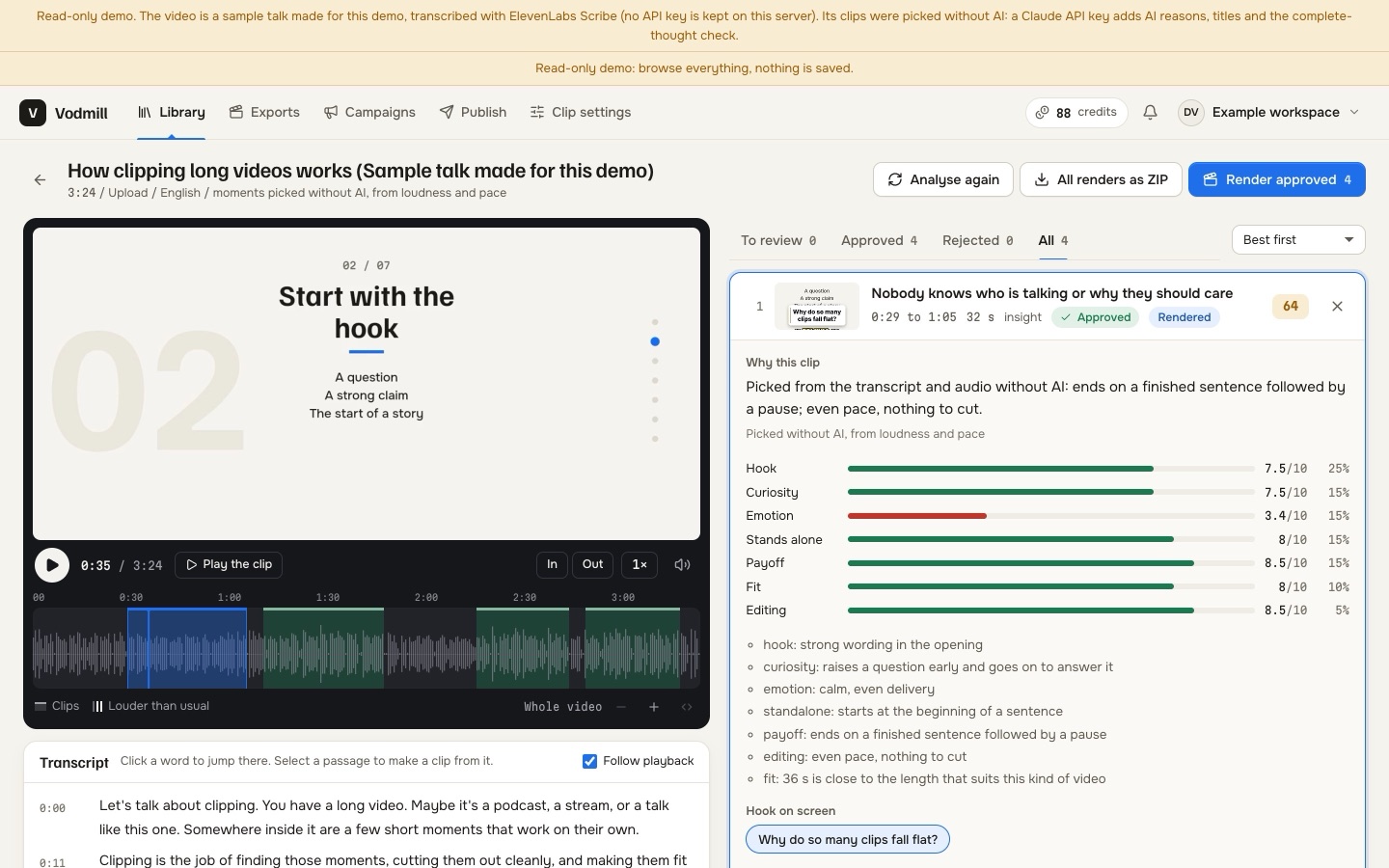
Opening a source shows its clip board: the suggested clips, best first (or in the order they happen, or longest first), each with its preview, title, score breakdown, "Why this clip", the suggested on-screen hook and post title, and the transcript.
| Key | Action |
|---|---|
| J K | Next, previous clip |
| A | Approve |
| X | Reject, with an optional reason in a few words |
| Enter | Open in the editor |
| Space | Play |
| I O | Mark a clip by hand on the source |
- Approved clips can be rendered together with "Render approved", or opened in the editor first.
- Rejected clips stay on their own tab and can be put back to review.
- Approvals, rejections and their reasons feed the workspace's preferences, so later picks fit better (needs AI on the server). The Clip settings page shows what the picker has learned and can clear it.
- "Analyse again" runs the analysis with other settings.
Who may do what: owners and editors do everything; a client sees everything and approves or rejects but cannot edit or render; a viewer looks and downloads.
054. The clip editor
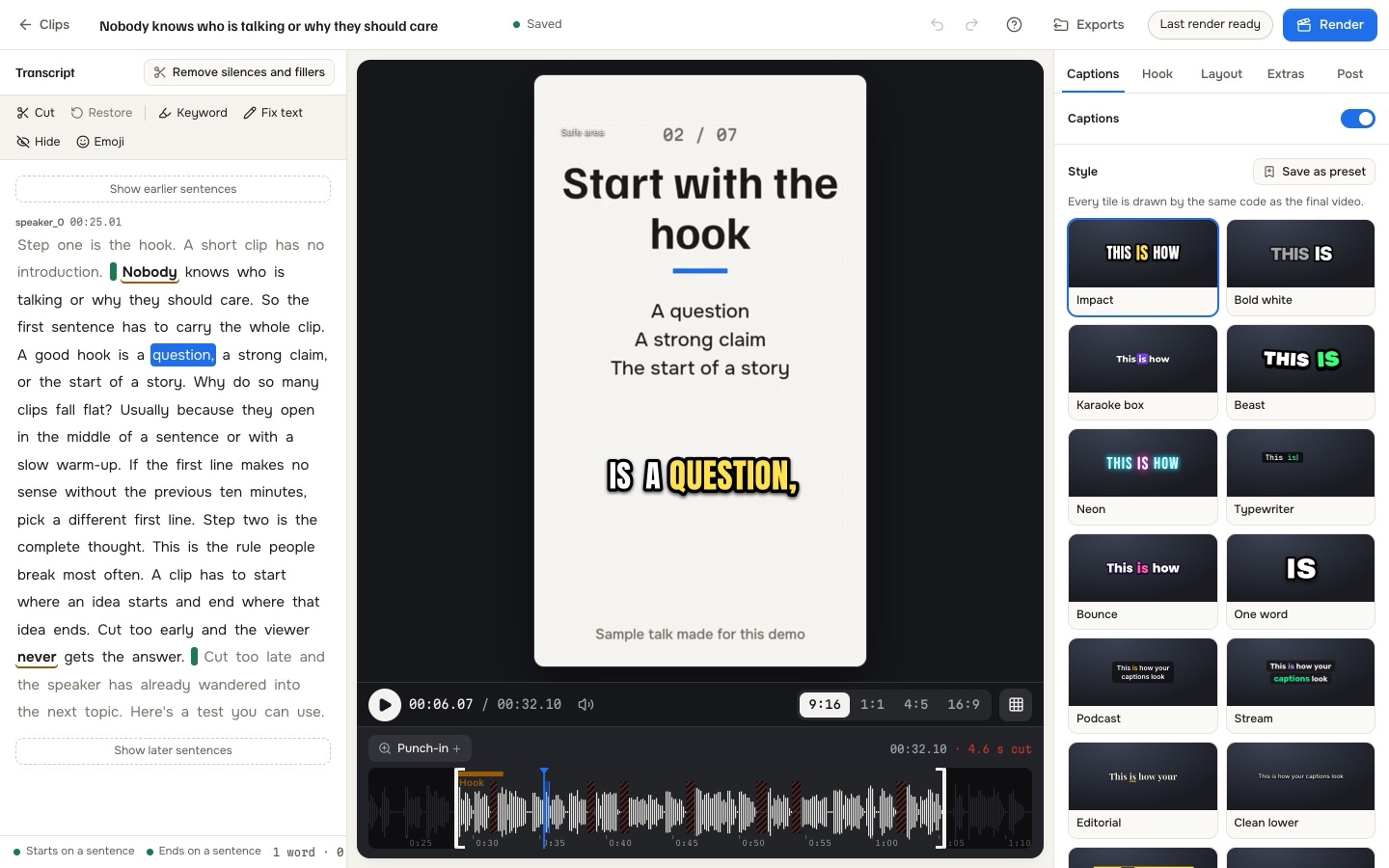
The editor is a full-screen page: the video stage in the middle, the transcript on one side, the inspector with its tabs on the other, the timeline below. Changes save by themselves; ⌘/Ctrl+Z undoes. ? shows every shortcut.
| Where | What you do there |
|---|---|
| Transcript | Click a word to go there. Select words and cut them (Delete), correct a word (double-click), hide a word from the captions while the voice stays, mark a keyword (K), put an emoji on a word. Drag the clip's start and end; the editor marks sentence boundaries while you drag. "Cut pauses and filler words" and "move to the sentence boundary" are free. |
| Timeline | Waveform, start and end handles that snap to words, cuts, and punch-in zooms (Z adds one at the playhead). |
| Captions tab | Preset tiles, then every detail of the style (Caption presets). |
| Layout tab | Auto, Fill, Fit, Split, Stack, Screen (Layouts and reframing). |
| Hook | A line of text at the start of the clip: type it or pick a suggested one; style, animation, when it appears and leaves. |
| Title and post text | The post title and hashtags; new titles and hooks, and post texts written for TikTok, Shorts, Reels and X (cost credits, need AI on the server). Post text is not stored with the clip: copy what you need. |
| Look | Watermark (handle as text, or a logo, in a corner), outro card, progress bar. |
| Sound | A music track with its volume, "Reduce background noise", "Even out the loudness". Both are applied when the clip renders; the preview plays the original audio. |
The shape switch above the stage shows the clip in 9:16, 1:1, 4:5 and 16:9, and G shows the safe areas for TikTok, Reels and Shorts. The preview is drawn by the same caption code as the final render (packages/captions/), so what you see is what is rendered.
If someone else changed the clip while you were editing, the editor asks whether to keep your version or load theirs.
065. Render
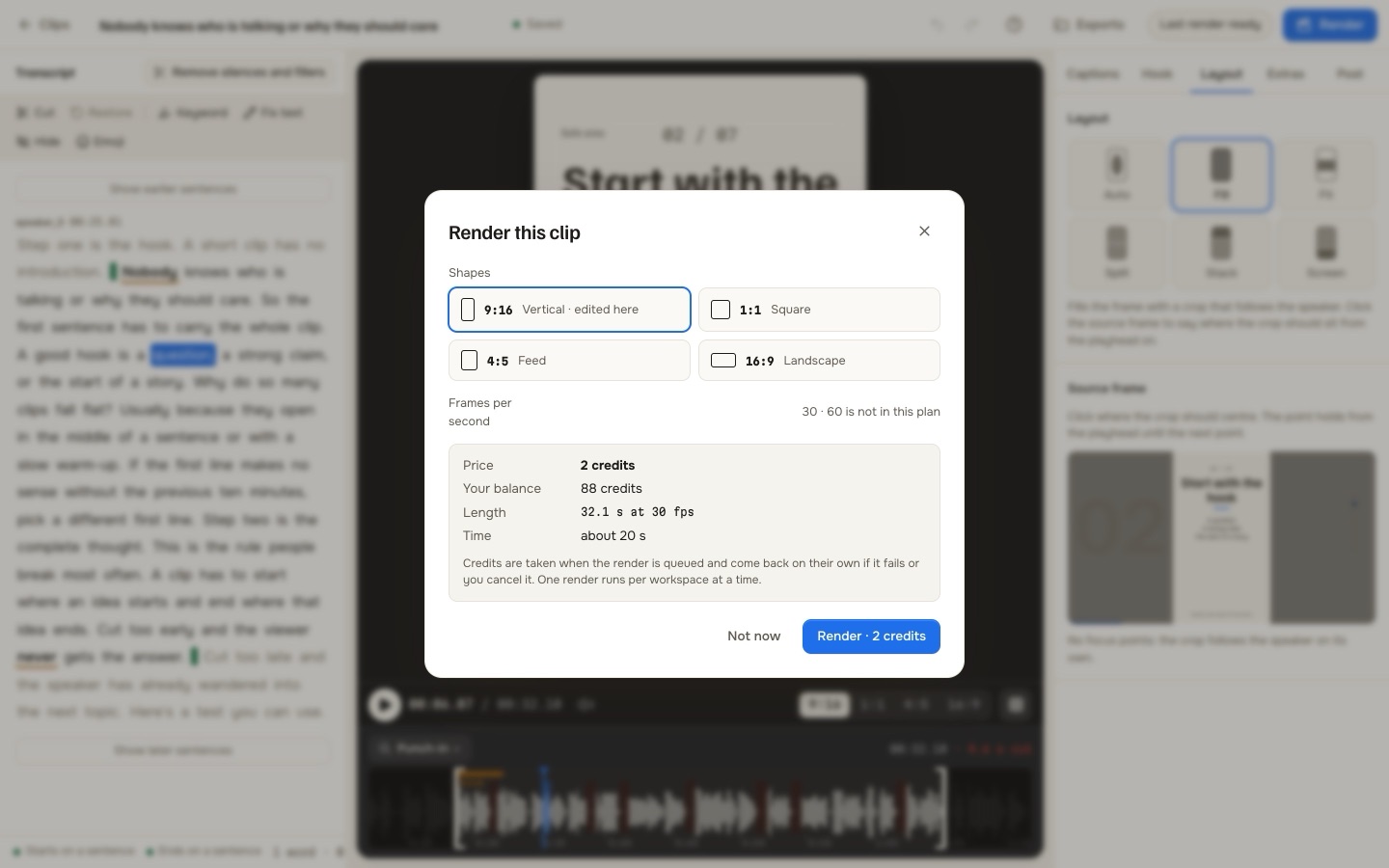
The render dialog asks for the shapes (one or several aspect ratios) and shows the price and your balance. Frames per second is a choice between 30 and 60 only when the operator and the plan allow 60; otherwise the dialog shows 30 and says that 60 is not in the plan. Credits are taken when the render is queued and come back by themselves if it fails or you cancel it. Canceling a render that is already running stops it and removes the files it had made. One render runs per workspace at a time; the others wait their turn, and you can keep editing meanwhile.
A render produces, per aspect ratio (packages/render/README.md):
- the video: MP4, H.264 with AAC sound, loudness evened to about −14 LUFS;
- subtitles as
.srtand.vtt; - a cover image;
- an edit decision list (
.edl, CMX3600) for a video editing program.
Renders on a plan without "No watermark" carry the operator's watermark text, when the operator set one.
076. Exports and share links
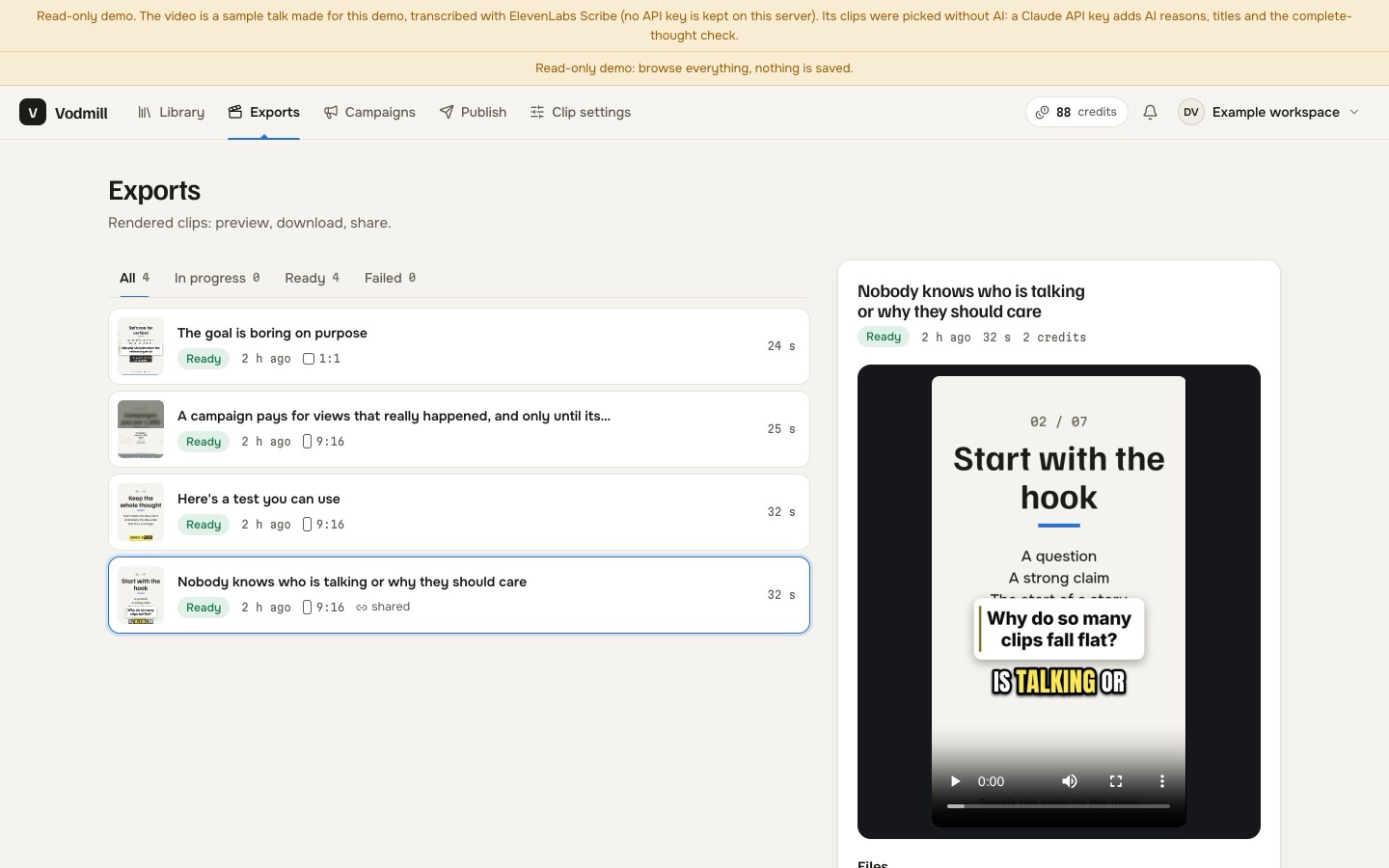
The Exports page lists every render with its state. For a finished one: preview each shape, download the files, download a ZIP of every finished clip of a source, open the clip in the editor again, or delete the render.
Make a share link creates a page with the video and a download button for someone without an account, such as a client. Anyone with the link can watch and download; the page asks search engines not to index it. "Take the link back" ends it at once.
If the operator set a storage period, the files of older renders are deleted and the render shows as expired; the clip can be rendered again.
08Workspace pages
| Page | What it is for |
|---|---|
| Clip settings | Defaults for new sources (count, lengths, shape, cut long pauses, punch-in zooms, caption style), what the channel is about, topics never to clip, words to spell right, saved caption styles, what the picker has learned |
| Team | Members, invites and roles: owner, editor, client, viewer. Only owners invite or change roles. |
| Plan and credits | Balance, plan, comparison, credit packs, credit history |
| Usage | What the workspace used |
| Logos and music | Logos for the watermark and the workspace's own music |
| Workspace | Name, id, and the workspace's own Anthropic key when the operator allows it |
| Developers | API keys and webhooks (owners; API v1) |
| Notifications | Finished and failed analyses and renders, posts, campaign news |