
Campaigns
brands post, clippers submit, the ledger records.
With campaigns switched on, your install becomes a small marketplace: a brand or creator posts a campaign with a budget and a rate per 1,000 views, clippers post clips on their own accounts and submit the links, views are tracked, submissions are reviewed, and what each clipper is owed is written into a ledger.
01The ledger principle
Vodmill records what a clipper is owed and what somebody marked as paid, with a payment reference. It does not hold a balance, charge the brand's budget, or send anything to a clipper. You (or the brand) pay clippers outside the software with your own payment provider, then record the reference. Stripe in Vodmill is only for your customers' plans and credit packs.
That is a deliberate design: you run the programme and stay in control of how and when money moves, and of the legal and tax duties that come with paying people. Nothing in the app or in this documentation promises a clipper views or income; amounts shown before approval are labelled as estimates.
02Who does what
| Role | Who it is | What they do |
|---|---|---|
| Brand | A workspace whose plan has "Create campaigns". Its owner creates campaigns; its editors review. | Writes the brief and rules, sets rate, budget and access, approves or rejects submissions, confirms view reports |
| Clipper | Any signed-in user | Links their social accounts, joins campaigns, posts clips on their own accounts, submits the links, follows earnings |
| Operator | You, in the console | Switches campaigns on, sets commission and timing, handles flags, appeals and account screenshots, creates payout batches, records payments |
03Switch it on: console settings
Console, Money, Campaigns (src/server/campaigns/settings.ts):
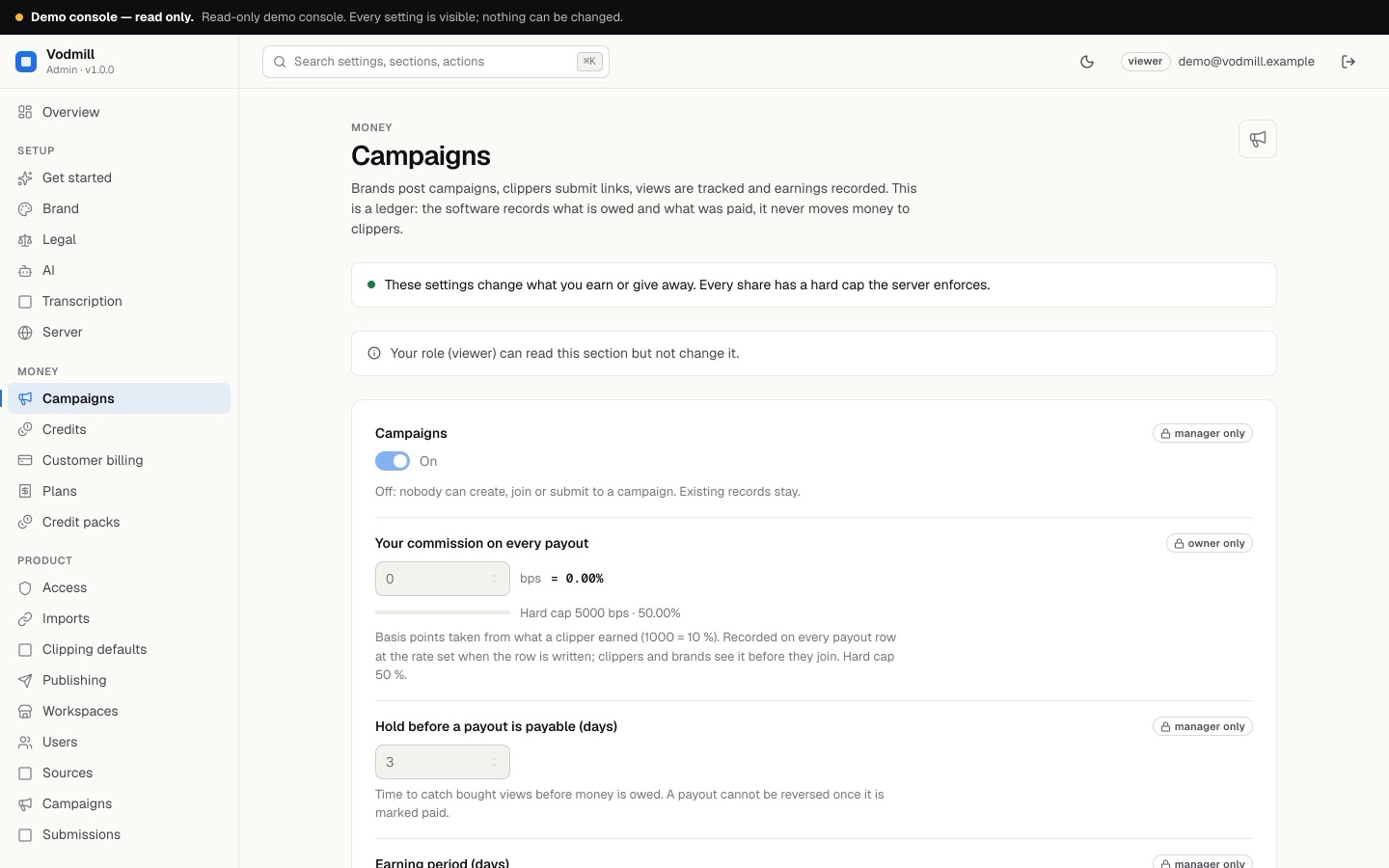
The picture is from a demo with the switch on. A new install has it off.
| Field | Default | Meaning |
|---|---|---|
| Campaigns | Off | Off: nobody can create, join or submit. Existing records stay, and clips already tracked are still counted and settled. |
| Your commission on every payout | 0 | Basis points (1000 = 10 %). Hard cap 5000 = 50 %. Only a console owner can change it. |
| Hold before a payout is payable (days) | 3 | 0 to 90. Time to catch bought views before money is owed. |
| Earning period (days) | 7 | 1 to 60. While a clip is tracked, what it earned is written as a payout row once per period, and once more when tracking ends. |
| Views are counted for (days after submission) | 30 | 1 to 180. A campaign can set its own window. |
| Fraud score that pauses a payout | 60 | 1 to 100 |
| Smallest balance that goes into a payout batch (cents) | 0 | A clipper below it waits for the next batch |
| Campaign owners can mark payouts paid themselves | Off | Off: only you record payments. On: a brand that pays clippers directly can record it with a reference. |
| Read public profile pages for the verification code (TikTok, Instagram, X) | Off | Unofficial: one read of the clipper's own public profile; it may stop working and may not be allowed by the platform. Off: those accounts are verified by a screenshot you review. |
Then give the right plans the "Create campaigns" limit (Plans), and add the view-counting keys below.
04For the brand: creating a campaign
In the app, Campaigns, a workspace owner creates a campaign as a draft:
| Part | What to set |
|---|---|
| Brief and links | What to clip, what the clip should say, links to the source material |
| Platforms | Any of YouTube, Twitch, TikTok, Instagram, X, Kick, Facebook |
| Pay | A rate per 1,000 views and/or a flat fee per approved clip; the smallest view count that earns; the most one clip can earn; the currency |
| Budget | The total. It must cover at least one clip's maximum. |
| Access | Open (anyone joins), by application (the brand approves each clipper), or by invite link |
| Rules | Required hashtags, caption text, mentions, a minimum length, custom rules; whether views count from the post or from the submission; the tracking window |
| Permission statement | The brand confirms it holds the rights to the content it asks people to clip |
Activating the campaign freezes its terms: rate, flat fee, minimum views, per-clip maximum, currency, platforms, access and rules cannot change afterwards. Title, brief, links, a later end date and the budget stay editable. A campaign can be paused (no new joins or submissions; tracking continues), ended (submitted clips are tracked to the end of their window and approved ones are still owed) and archived once nothing is open.
The budget, what is reserved and what is paid are visible to clippers on purpose: nobody should post into an empty pool.
05For the clipper: accounts, joining, submitting
- Link an account On the Accounts page add a platform and a handle. The app shows a short code to put into the channel description or bio. YouTube and Twitch accounts are verified by reading that code through their official APIs. Other platforms are verified by a screenshot that the operator reviews (or by the optional profile-page read).
- Join a campaign Open ones at once; application ones after the brand approves; invite ones with the link.
- Post and submit Post the clip on the linked account, then submit the link of the post. One post can be submitted to a campaign once.
- Follow it Each submission shows its views, the counted views, which requirements pass, the fraud score with its signals, and what it earned. "Counted views can be lower than the platform shows" comes with the reasons.
- Earnings The Earnings page shows balances net of commission: in hold, paused, payable, in a batch, paid, each payout with its reference. The clipper enters where to be paid (a short text, for example a payment address); only whoever records payments sees it.
A rejection always names a rule of the campaign. A clipper may appeal a rejection once; the operator decides the appeal.
06How views are counted
| Platform | How | What you need |
|---|---|---|
| YouTube | Automatic through the YouTube Data API | A YouTube Data API key under Integrations |
| Twitch | Automatic through Twitch's official API | A Twitch app: client ID under Product, Imports; client secret under Integrations |
| TikTok, Instagram, X, Kick, Facebook | Manual: the clipper uploads a screenshot with the view number; a reviewer of the brand or the operator confirms or corrects it | People to review |
On automatic platforms views are read hourly for the first 48 hours after submission, then daily, until the tracking window ends. The status check "Campaign views can be counted automatically" tells you which of the two are set up; without either key every count needs a screenshot and a reviewer.
Get a YouTube Data API key
- Project In the Google Cloud console create or pick a project.
- Enable the API APIs & Services, Library, YouTube Data API v3, Enable.
- Create the key APIs & Services, Credentials, Create credentials, API key. Restrict it to the YouTube Data API v3.
- Paste it Console, System, Integrations, "YouTube Data API key".
Get Twitch app keys
- Register At dev.twitch.tv/console, Applications, Register Your Application.
- Copy the Client ID into Console, Product, Imports, "Twitch app client ID".
- Secret Create a client secret and paste it into Console, System, Integrations, "Twitch app client secret".
07How an amount is worked out
per-view part  = 0 while counted views < minimum views,
                 else the smaller of: per-clip maximum, counted views × rate ÷ 1000
earned (gross) = flat fee + per-view part, never more than what was reserved for the clip
commission     = gross × your commission, at the rate in force when the payout row is written
net = gross − commission (what the clipper is owed)- When a clip is approved, its possible maximum is reserved against the budget. If the budget is fully reserved, the clip cannot be approved until the brand raises the budget. The rule the ledger keeps: reserved + paid never exceeds the budget (
src/server/campaigns/ledger.ts). - Payout rows are written for the flat fee at approval, then for what the clip earned once per earning period, and a last time when the window ends or the clip reaches its maximum. Unused reservation returns to the budget.
- Each row becomes payable after the hold. A row that is marked paid is final.
Any rate you see in an example is an example. What clippers actually earn depends on the campaign's terms and on real views.
08The fraud score
Every tracked clip gets a score from 0 to 100, the sum of signals that everyone involved can see with their measured values (src/server/campaigns/fraud.ts):
| Signal | Most points | Triggers when |
|---|---|---|
| No engagement | 30 | At least 1,000 views and likes plus comments under 0.2 % of views (15 points under 0.5 %). Not measured when the platform reports no likes. |
| Step jump | 25 | One interval between readings holds more than half of the growth (at least 5,000 views) at 10 times the usual pace or more. Needs 4 readings. |
| Duplicate video | 20 | Another clipper submitted a video with the same title and length to the campaign |
| New channel | 10 | The account was younger than 30 days at submission (5 points under 90 days) |
| Velocity outlier | 10 | At least 2,000 views an hour in the first 48 hours and more than 10 times the campaign's median. Needs 4 other tracked clips. |
| Late growth | 5 | More than 60 % of the growth (at least 5,000 views) after day 7 |
A score at or above the threshold (60 by default) sets a flag. A flag pauses the clip's payouts until a reviewer or the operator looks. It never rejects a clip by itself. Clearing the flag lets the payout continue; the clip is flagged again only if its score rises 10 points above the cleared score. Rejecting needs a rule of the campaign, like any rejection.
The score is a set of simple checks on public numbers. It can be wrong in both directions; a person decides.
09For the operator: the three console pages
| Page | What you do there |
|---|---|
| Campaigns | Every campaign with budget, reserved, paid, clippers and submissions. Pause, resume or end a campaign. "Read views now" runs the view check at once. |
| Submissions | What waits for a person: clips flagged by the fraud score, appeals, view reports from manual platforms, account screenshots. Clear a flag, reject with a rule, uphold or overturn an appeal, confirm or correct a view number, accept or decline an account. |
| Payouts (managers and owners) | What clippers are owed, net of your commission; payout batches; the CSV. |
Only the operator can reverse an already approved clip, with a rule, and only its unpaid part.
10Paying clippers: batches, CSV, marking paid
- Create a batch Console, Payouts, "Create a batch from what is payable" (for everything or for one campaign). It collects every payable row per clipper and currency. Balances under the smallest-balance setting wait.
- Download the CSV It has each clipper's e-mail, their pay-to text, the amounts and the currency. Nothing in the app shows a clipper's e-mail to brands or other clippers.
- Pay with your own provider (bank transfer, a payout service), outside Vodmill.
- Record the reference Mark the batch paid with the reference of the payment you made (a bank transfer id, a payout batch id). Clippers see it. This cannot be undone.
A batch that was not paid can be cancelled; its rows become payable again. With "Campaign owners can mark payouts paid themselves" on, a brand owner can mark its own campaign's payable rows paid with a reference, and export its own CSV.
11Your commission
The commission is 0 until a console owner sets it. It is entered in basis points and can never be above 5000 (50 %): the cap is enforced in the console and again when the value is read, so a value written past the console is still capped (COMMISSION_CAP_BPS). Clippers and brands see the rate before they join. Each payout row stores the commission at the rate in force when the row was written, so a later change never alters old rows.
The ledger shows your commission as a figure next to every payout. Collecting it is part of how you settle with the brand outside the software.
12What to tell your users
- Clippers post on their own accounts and must follow each platform's rules, including its rules on disclosing paid or sponsored content.
- Views must be real. Bought or botted views break the standard rules of every campaign.
- Posts must stay public for the whole tracking window.
- Payments are made outside the app; the app shows what is owed and what was recorded as paid.
- Nothing promises views, reach or income.