
● Use · Framing
Layouts and reframing
how a wide video becomes a vertical clip.
Most sources are 16:9. For a 9:16, 1:1 or 4:5 clip the server decides, shot by shot, which part of the frame to show. It finds faces with a small on-server model and follows the person who talks. You can leave it on Auto or choose a layout by hand.
01The six layouts
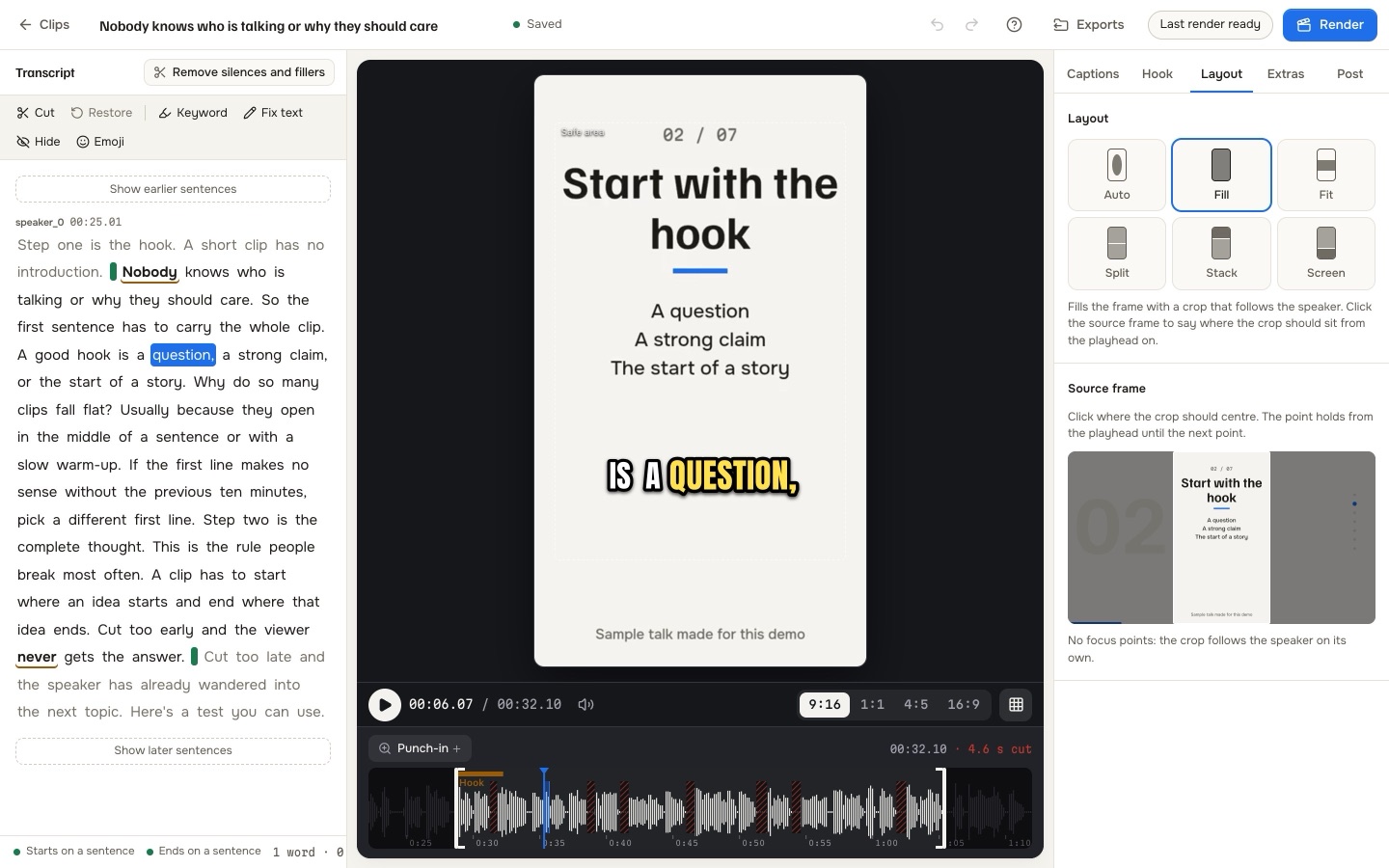
In the editor's Layout tab:
| Layout | What it does | Good for |
|---|---|---|
| Auto | Picks the framing shot by shot when the clip renders: follows the speaker, stacks a face camera over gameplay, or fits a wide shot | The default |
| Fill | Fills the frame with a crop that follows the speaker. Click the source frame to set focus points: each holds from the playhead until the next point. | One person talking |
| Fit | Shows the whole frame over a blurred copy of itself; nothing is cropped away. A zoom slider crops the sides or shrinks the frame. | Wide shots, slides, group shots |
| Split | Two speakers, one above the other | Interviews, podcasts with two cameras in one frame |
| Stack | Face camera on top, gameplay below | Streams |
| Screen | Screen share on top, the speaker below | Tutorials and slides |
For Stack and Screen the camera and content areas are found automatically, or you draw them: "Set by hand", then drag the boxes over the camera and the content and choose the share of the height each gets.
02How Auto decides
From packages/reframe/README.md:
- The clip's range is sampled at four frames a second and split into shots at scene cuts.
- Faces are found in every sample by the YuNet model in
models/, on the server's CPU. Nothing is sent to an outside service. - Per shot: a small steady face in a corner means a face camera, so Stack (or Screen when the rest looks like slides). No face, or a very small one, means Fit. Two steady faces of similar size, far apart, mean Split. Otherwise Fill.
- In Fill with several faces, the crop follows the face whose mouth region moves, not the biggest face. Speaker labels from the transcript, when the provider gives them, improve the timing.
- The crop stands still while the face stays near its place, and makes one eased move when the face leaves. A new speaker or a new shot is a cut, never a pan.
03Correcting it by hand
- Wrong person followed: switch to Fill and click the right person on the source frame at the playhead. Add another point where the framing should change. "Use the centre" and removing points bring the automatic behaviour back.
- Face camera not found (round or cut-out cameras, cameras that are not in a corner): choose Stack and draw the camera box.
- Nothing should be cropped: choose Fit.
A layout chosen by hand always wins over the automatic decision. Each aspect ratio gets its own plan, so check the other shapes with the switch above the stage before a multi-shape render.
04Limits to know
- It is face detection only. Profiles, sunglasses, masks and very small faces can be missed; with no face the result is Fit or a centre crop, not a tracked subject.
- The mouth rule needs steady, reasonably lit faces. With turning heads, or hands and phones in front of the mouth, it may not decide and the largest steady face is used.
- Dissolves and whip pans can be missed or split as scene cuts.
- HDR sources are not tone-mapped; sources are treated as standard dynamic range.
- Split-screen with unrelated footage under a talking head is not offered as a layout.
05Cuts, zooms and sound
Three more things shape a clip, all editable:
- Silence and filler cuts: long pauses and filler words are removed from new clips when "Cut long pauses" is on. Every cut can be put back in the editor. Not applied to streams.
- Punch-in zooms: a slight zoom on the strongest lines; add or remove them on the timeline. Not applied to streams.
- Sound: a high-pass filter, optional noise reduction, music lowered under speech, and loudness evened out when the clip renders.