
Caption presets
18 built-in styles, and your own.
Captions are drawn word by word from the transcript's timings. The browser preview and the server render use the same drawing code, so a style looks the same in both. Pick a preset, adjust it, save it as your own.
01The built-in presets
From packages/captions/src/presets.ts. The id is what the console's "Caption preset (id)" default expects.
| Name | Id | Look |
|---|---|---|
| Impact | impact | Tall condensed caps, white with a yellow spoken word |
| Bold white | bold-white | Heavy white caps with a thick outline; the spoken word steps forward |
| Karaoke box | karaoke-box | A violet box slides from word to word under clean white text |
| Beast | beast | Rounded heavy caps, a new colour on every spoken word, tilted and bouncing |
| Neon | neon | Thin tall caps with a cyan glow; the spoken word lights up magenta |
| Typewriter | typewriter | Monospace on dark strips, typed letter by letter with a green caret |
| Bounce | bounce | Friendly lowercase that springs in; the spoken word turns pink |
| One word | punch | One huge word at a time |
| Podcast | podcast | Two calm lines on a soft dark panel, the spoken word in amber |
| Stream | stream | Chat-style dark chips per line with a purple spoken word |
| Editorial | editorial | A quiet serif in warm white with a gold underline that follows the voice |
| Clean lower | subtitle | Plain two-line subtitles low in the frame; nothing moves |
| Marker | marker | Black caps on tilted yellow tape |
| Comic | comic | Yellow comic lettering with a hard black drop |
| Arcade | arcade | Chunky display caps with an orange-to-yellow fill and a double outline |
| Soft pill | pill | Dark text on a white rounded pill; the spoken word turns blue |
| Build-up | build | Words land one by one as they are said and stay |
| Outline | hollow | Words wait as outlines and fill in as they are spoken |
02Adjusting a style in the editor
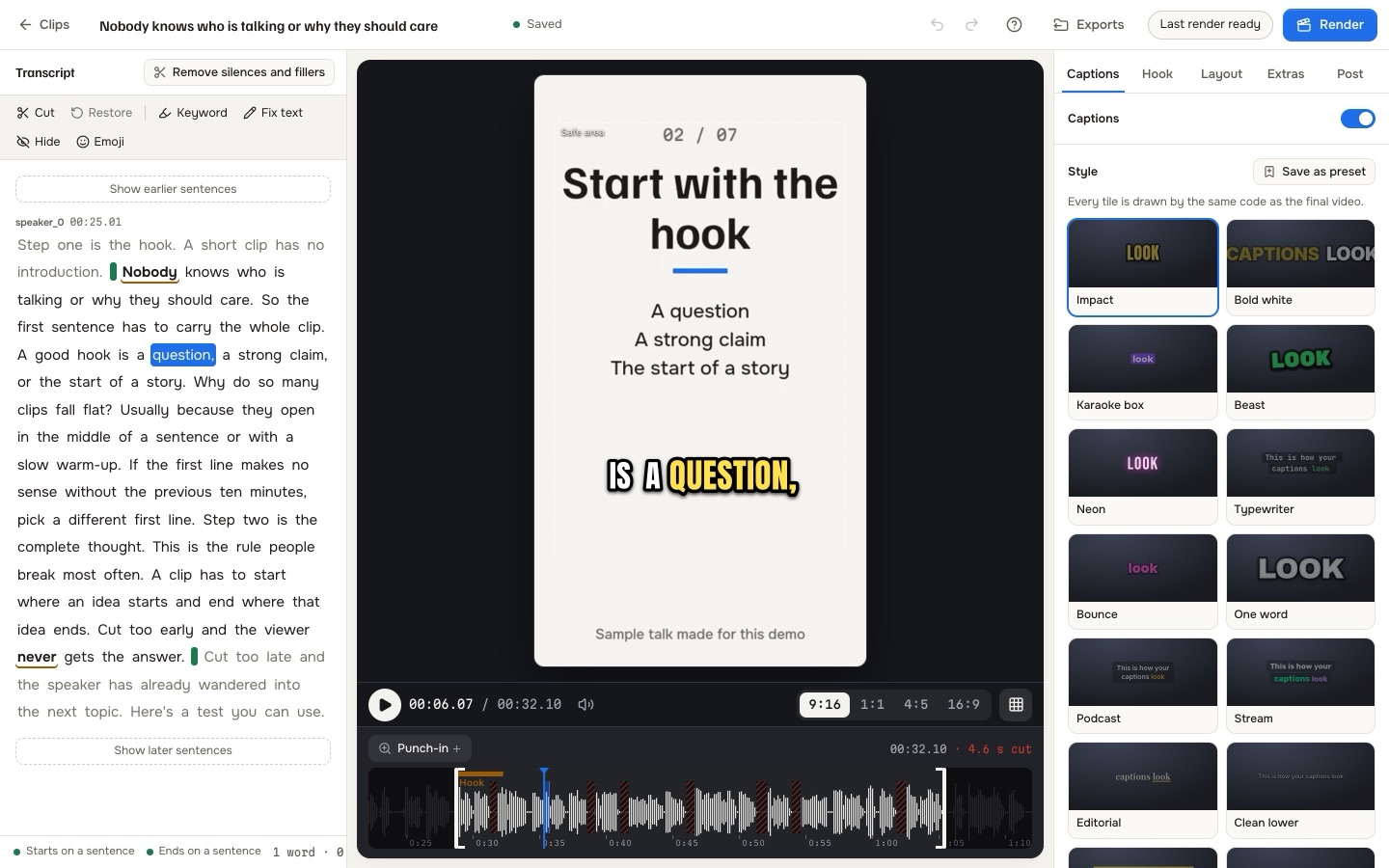
The editor's Captions tab starts with the preset tiles. Below them every part of the style can be changed:
| Group | Controls |
|---|---|
| Text | Font, weight, size, uppercase, letter spacing, colour |
| Words on screen | Words per line, one or two lines, animation (pop, slide, fade, bounce, typewriter, none) |
| Spoken word | Highlight mode and colour, grow; keywords and their colour |
| Outline and shadow | Outline width and colour; shadow colour, blur and drop |
| Background box | Box behind the text, one box per line, colour, corners, padding, text colour on the box |
| Position | A slider, or drag the captions on the picture. They always stay inside the platform's safe area. |
| Extras | Emoji above the words; "Mask strong language" (the word is masked in the captions and a beep is added when the clip renders) |
Text itself is edited in the transcript: correct a word, hide it from the captions, mark it as a keyword, or attach an emoji (The clip editor).
03Fonts
The caption fonts ship with the package as open fonts (SIL Open Font License) and are served from your own server: Anton, Archivo Black, Bangers, Bebas Neue, Bungee, Inter, JetBrains Mono, Montserrat, Playfair Display, Poppins, Rubik and Space Grotesk, plus Noto Color Emoji. They cover Latin and extended Latin scripts (packages/captions/README.md).
04A workspace's own styles
- Set it up In the editor, adjust the captions until they look right.
- Save as preset Give the style a name. It saves the whole look: captions, hook look, watermark, outro, progress bar and layout.
- Use it The style appears with the tiles for every clip of the workspace. On Clip settings it can be made the "Caption style of a new clip".
Saved styles are listed on Clip settings under "Saved in this workspace", next to the built-in ones and the ones "From this service" that the operator made.
05Operator presets for every workspace
Console page Caption presets:
- See the built-in presets and their ids. "Copy as your preset" starts a new one from a built-in.
- Your preset has a name, a "Users can pick it" switch, and its style as JSON with the parts
caption,watermark,outro,progressBar,layoutandhook. Colours are#RRGGBB; sizes are fractions of the video height. Values out of range are corrected when you save. - Mark one as the preset every new clip starts with, unless a workspace has its own default. The built-in default is the preset id under Product, Clipping defaults.
The easiest way to design an operator preset: build the look in the clip editor with a staff account, then copy the values into the console form.
06Safe areas
Captions never enter the margins that the platforms cover with their own buttons and text. For 9:16 the margins are 8 % at the top, 18 % at the bottom and 6 % at the sides (SAFE_ZONES in packages/captions/src/draw.ts). In two-part layouts the captions sit on the seam between the parts; in a face-following crop they stay below the chin line.